Welcome to this tutorial on Time Tracking in the Answers for College Advisor Portal. This feature allows you to accurately track and manage the time you spend working with each client family. Whether you bill hourly or simply want to monitor your time allocation, this tool helps you maintain professional records all in one place. Let's explore how to use it effectively.
Go to app.answers4college.com
1. Logging Into the Advisor Portal
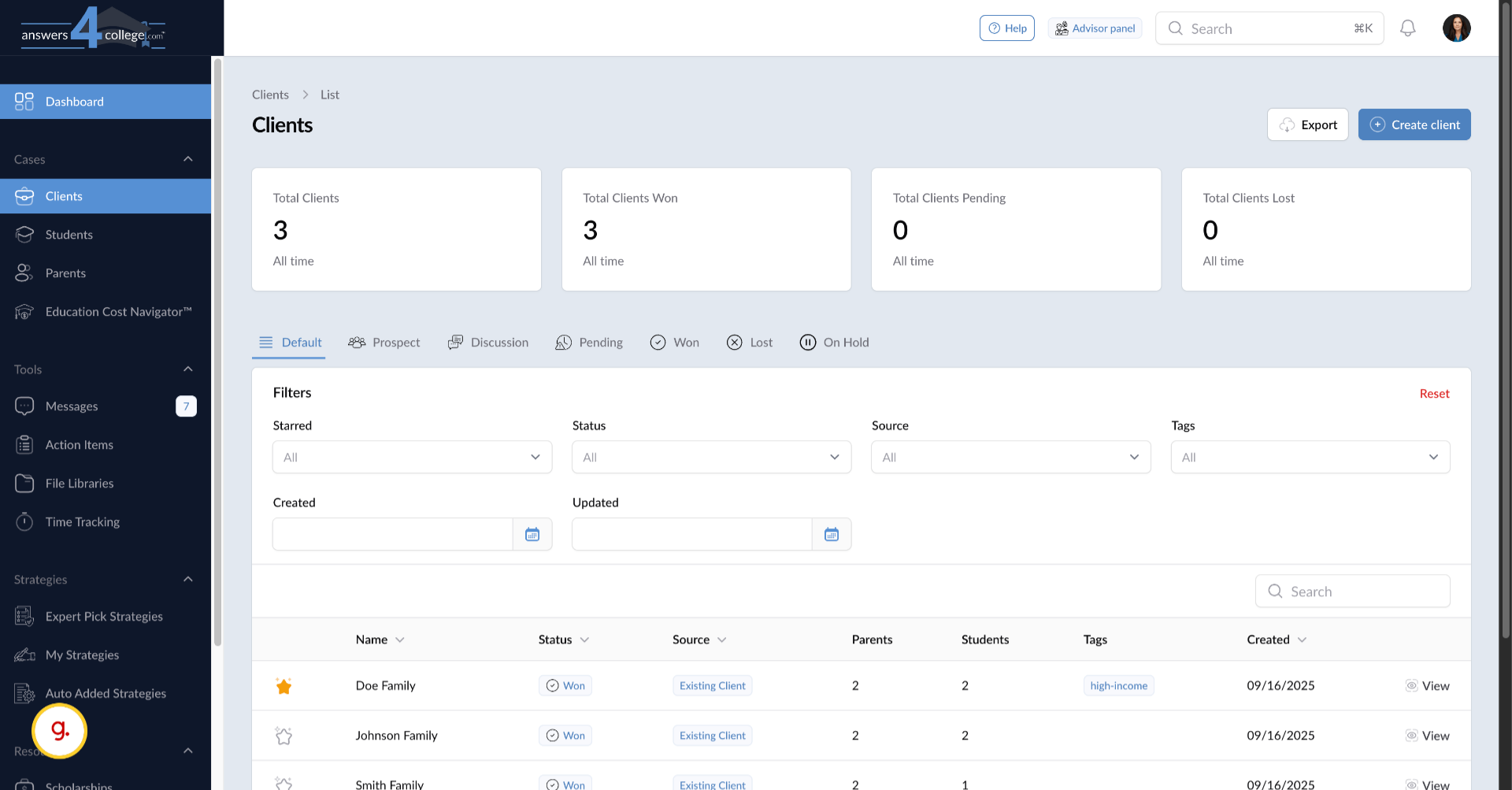
First, make sure you're logged into your Advisor Portal with your credentials. Once you're in and see your main dashboard, we're ready to explore the time tracking features.
2. Navigating to Time Tracking
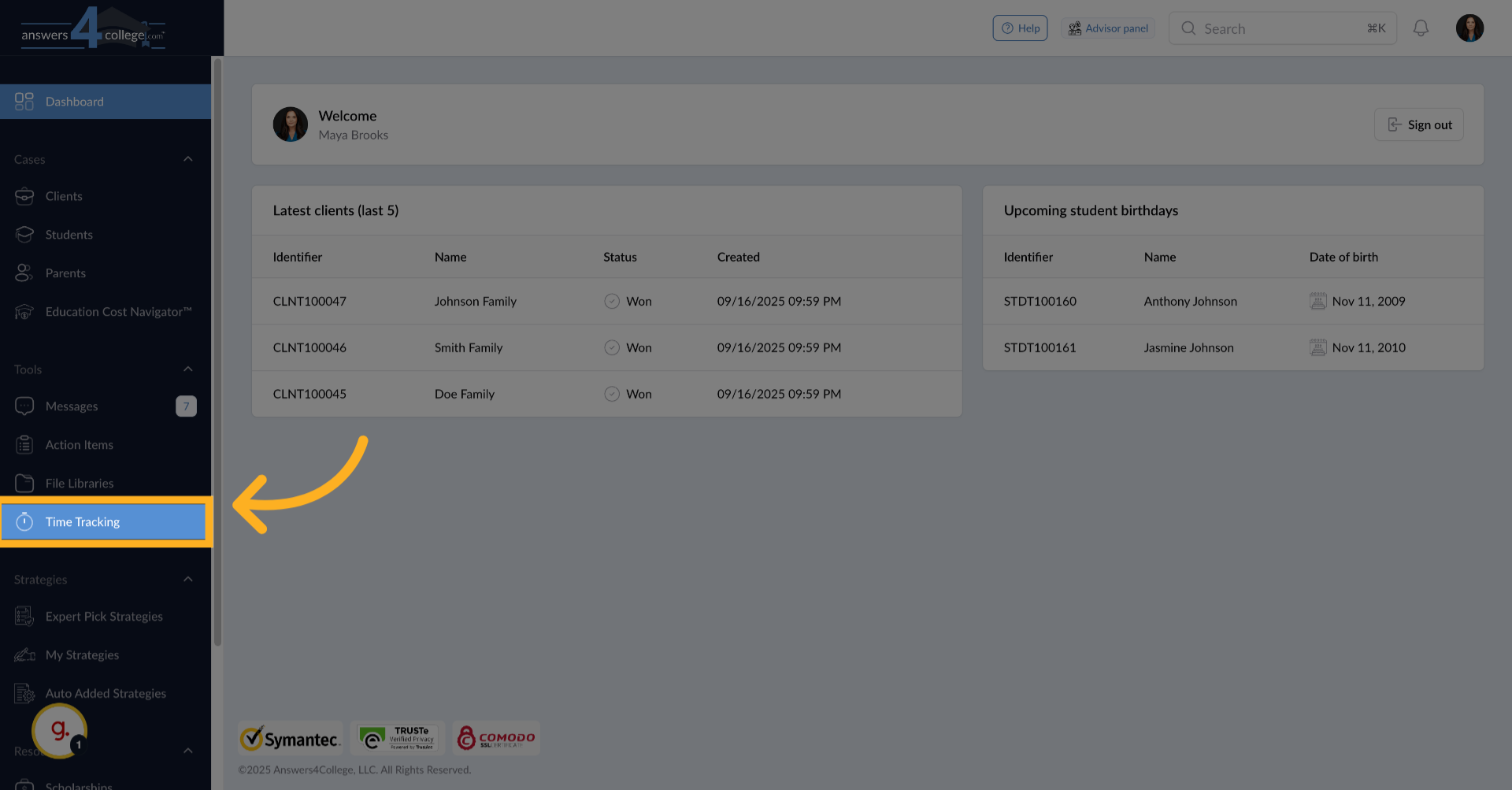
Look at the left-hand navigation menu where you'll find "Time Tracking." Click on it to access your time tracking dashboard.
3. Understanding the Overview Dashboard
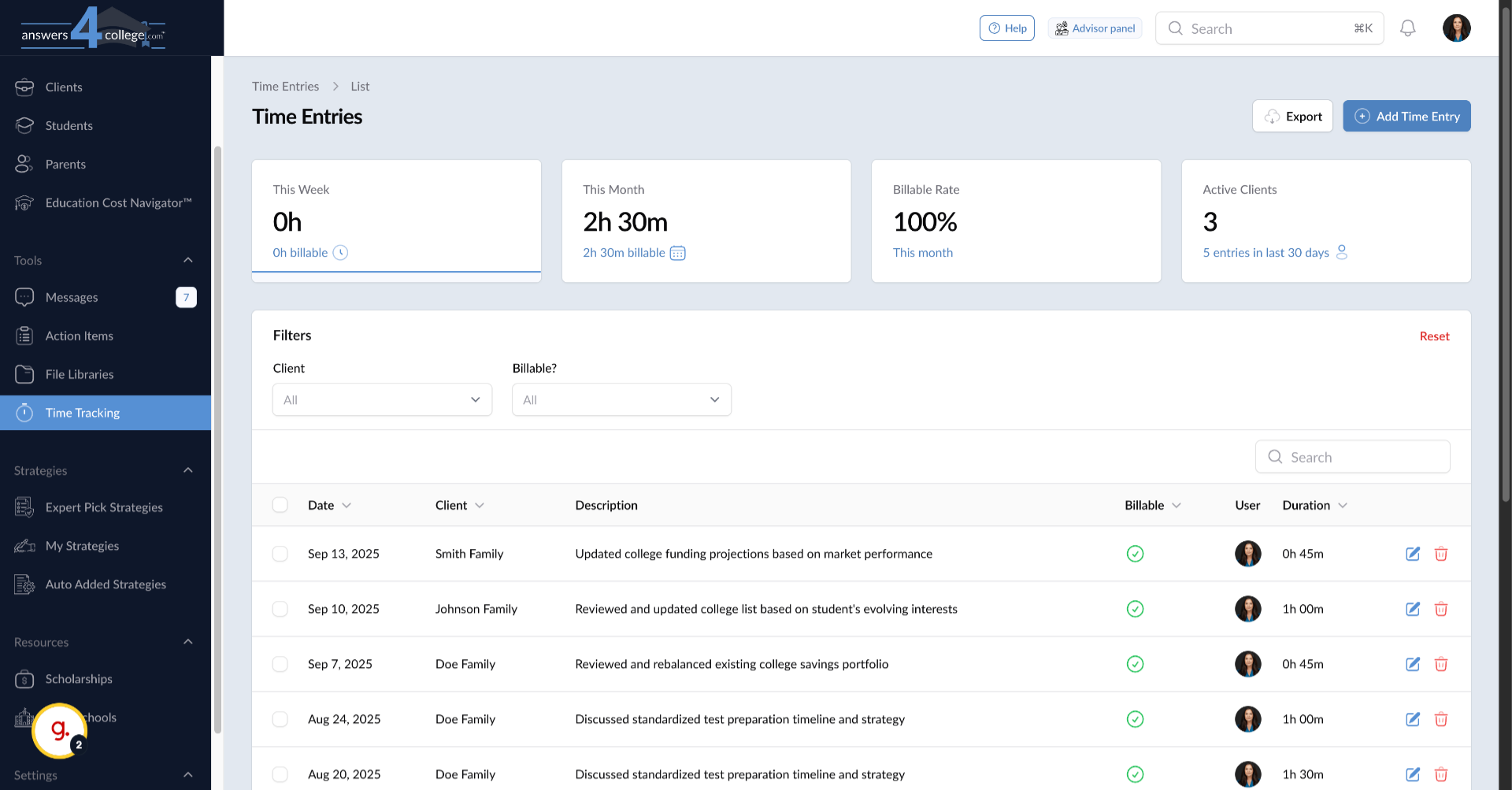
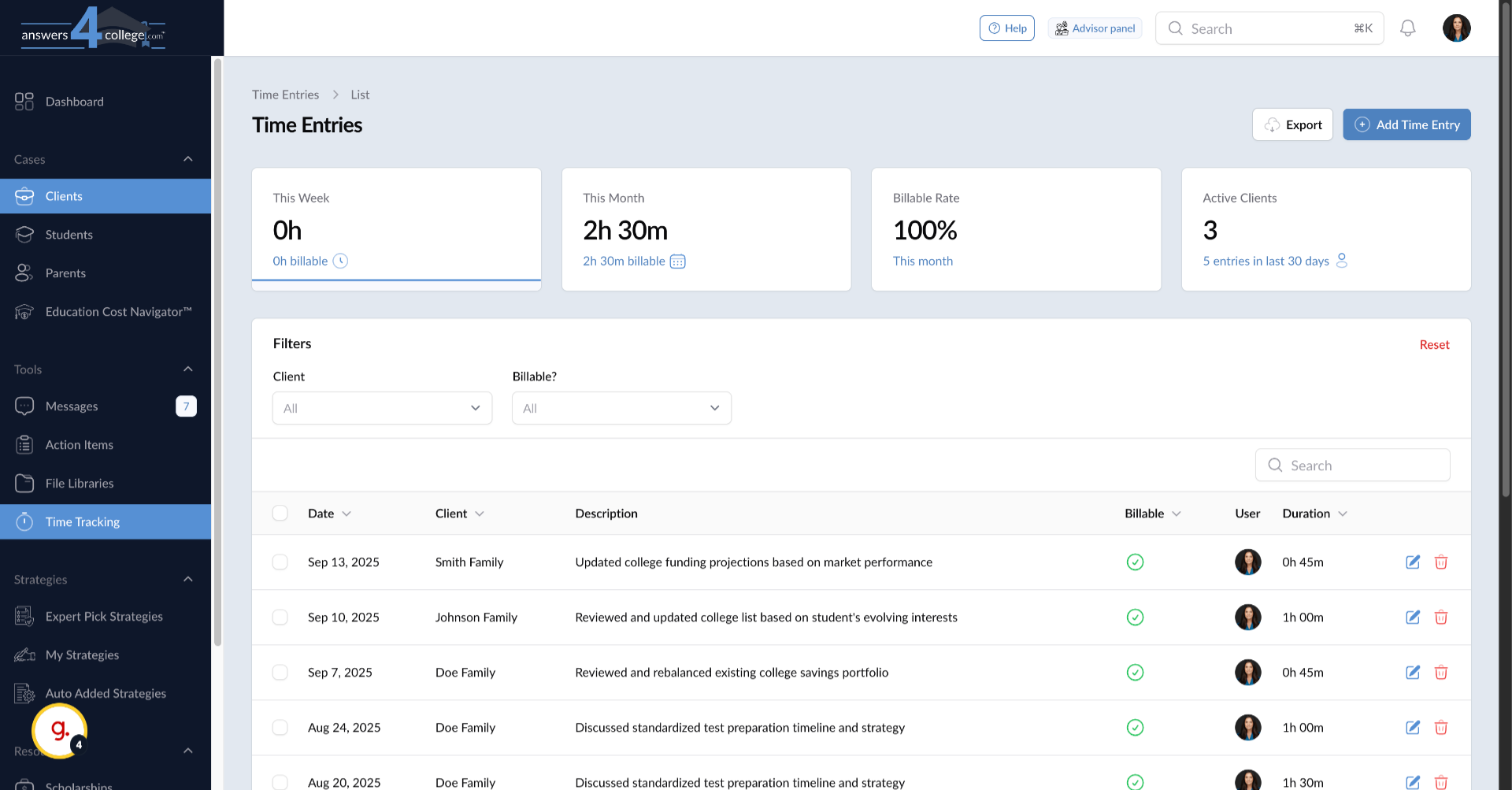
Excellent! You're now looking at your time tracking overview. This dashboard provides a complete picture of all the time you've logged across your various clients. If you've already been tracking time, you'll see your entries listed here. If you're just starting, this area will be ready for your first entries.
4. Reviewing Key Metrics
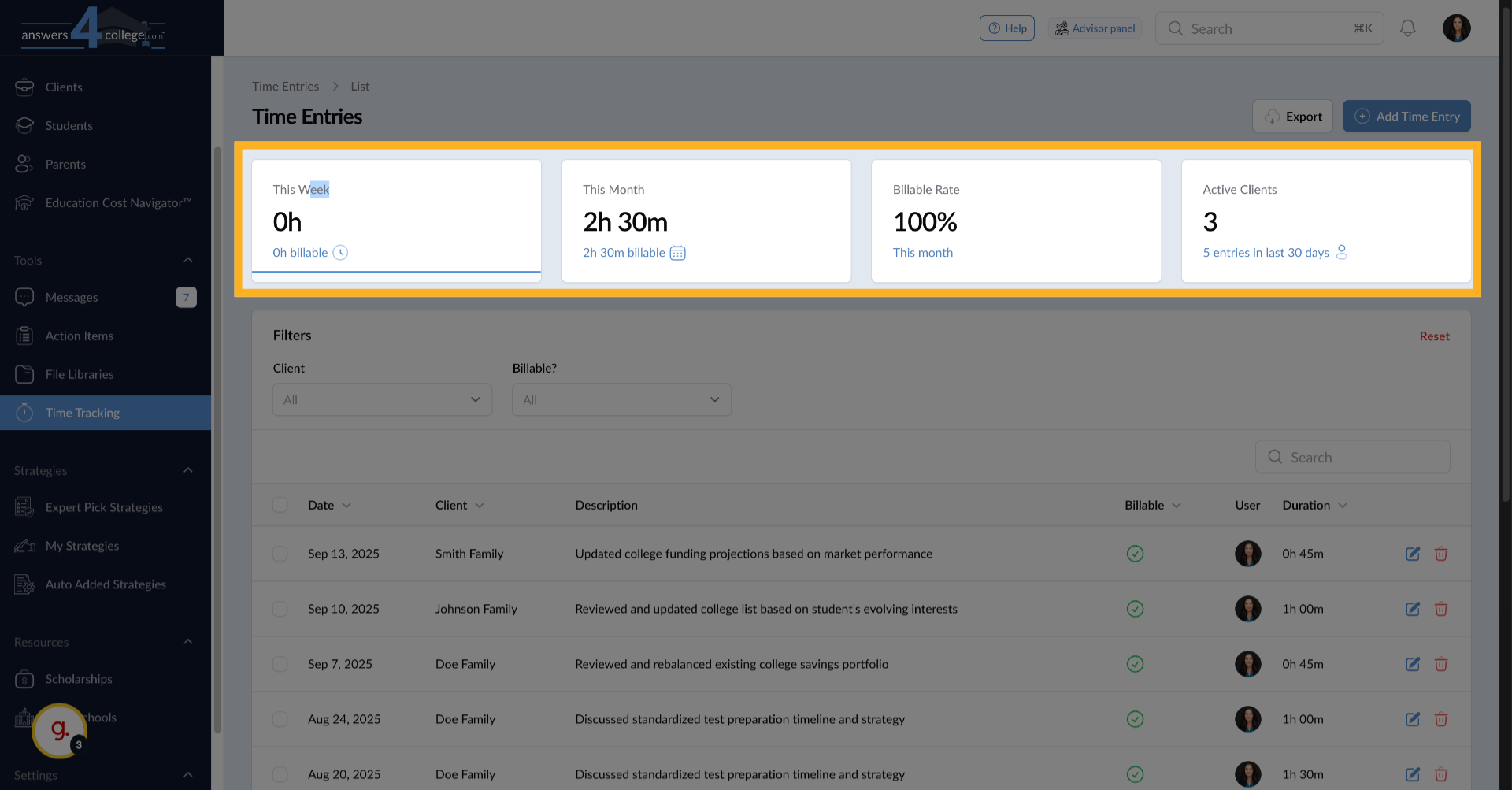
Notice the metrics displayed at the top of the dashboard. These show you valuable information at a glance: how much time you've spent this week, your total time this month, and your billable rate percentage. The billable rate shows you what portion of your tracked time is billable versus non-billable, helping you understand your efficiency and revenue potential.
5. Understanding Privacy Settings
Here's something important to know - all time tracking data is completely private and secure. Your clients cannot see any of this information. This is exclusively for your use as an advisor to manage your practice and understand your time allocation. You can track time honestly without worrying about client visibility.
6. Filtering
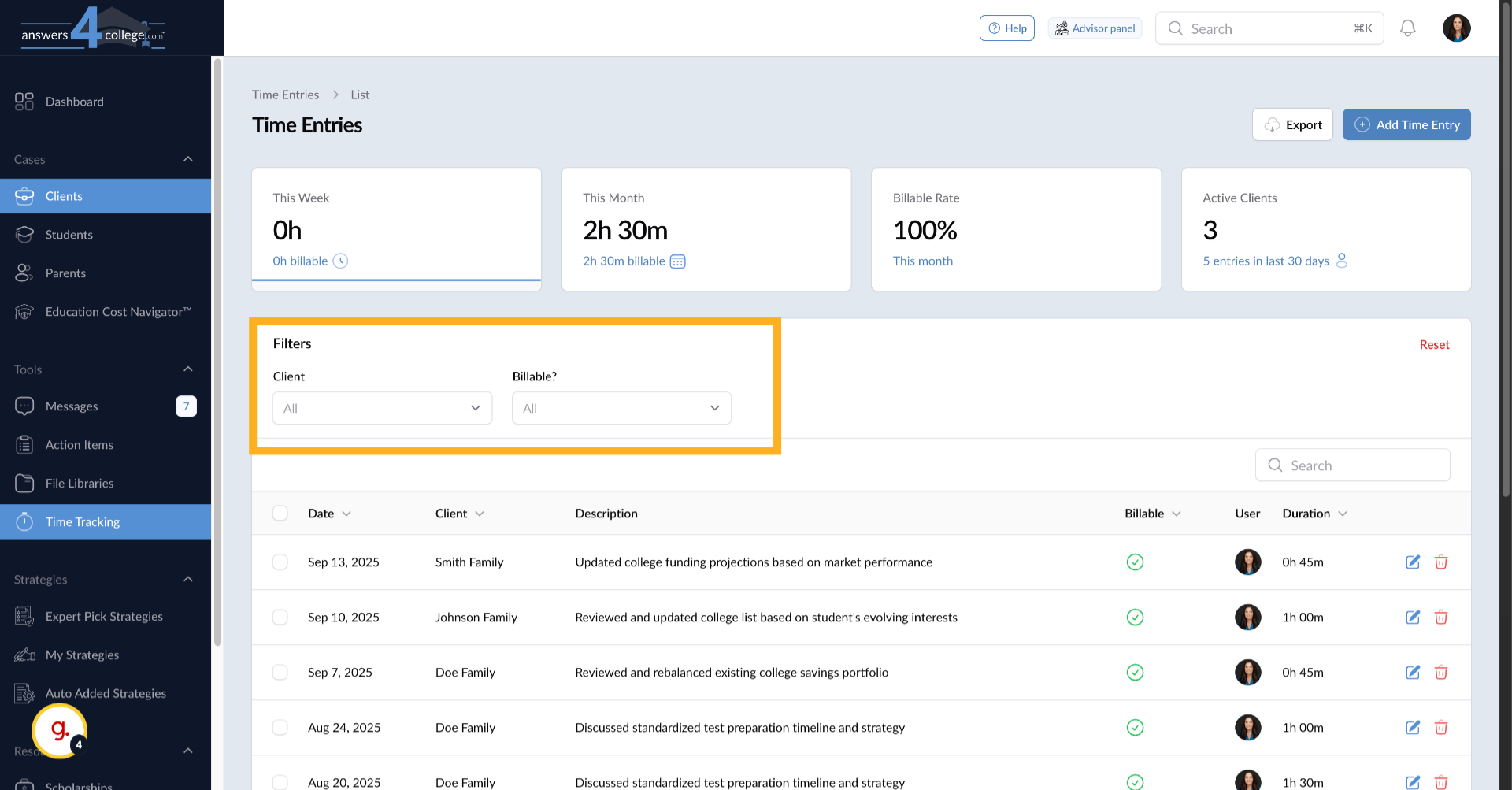
Here's something important to know - all time tracking data is completely private and secure. Your clients cannot see any of this information. This is exclusively for your use as an advisor to manage your practice and understand your time allocation. You can track time honestly without worrying about client visibility.
You can also filter by billable status. Use this dropdown to show only billable time, only non-billable time, or all entries. This is particularly useful when preparing invoices or analyzing where your non-revenue time is being spent.
7. Exporting Your Time Data
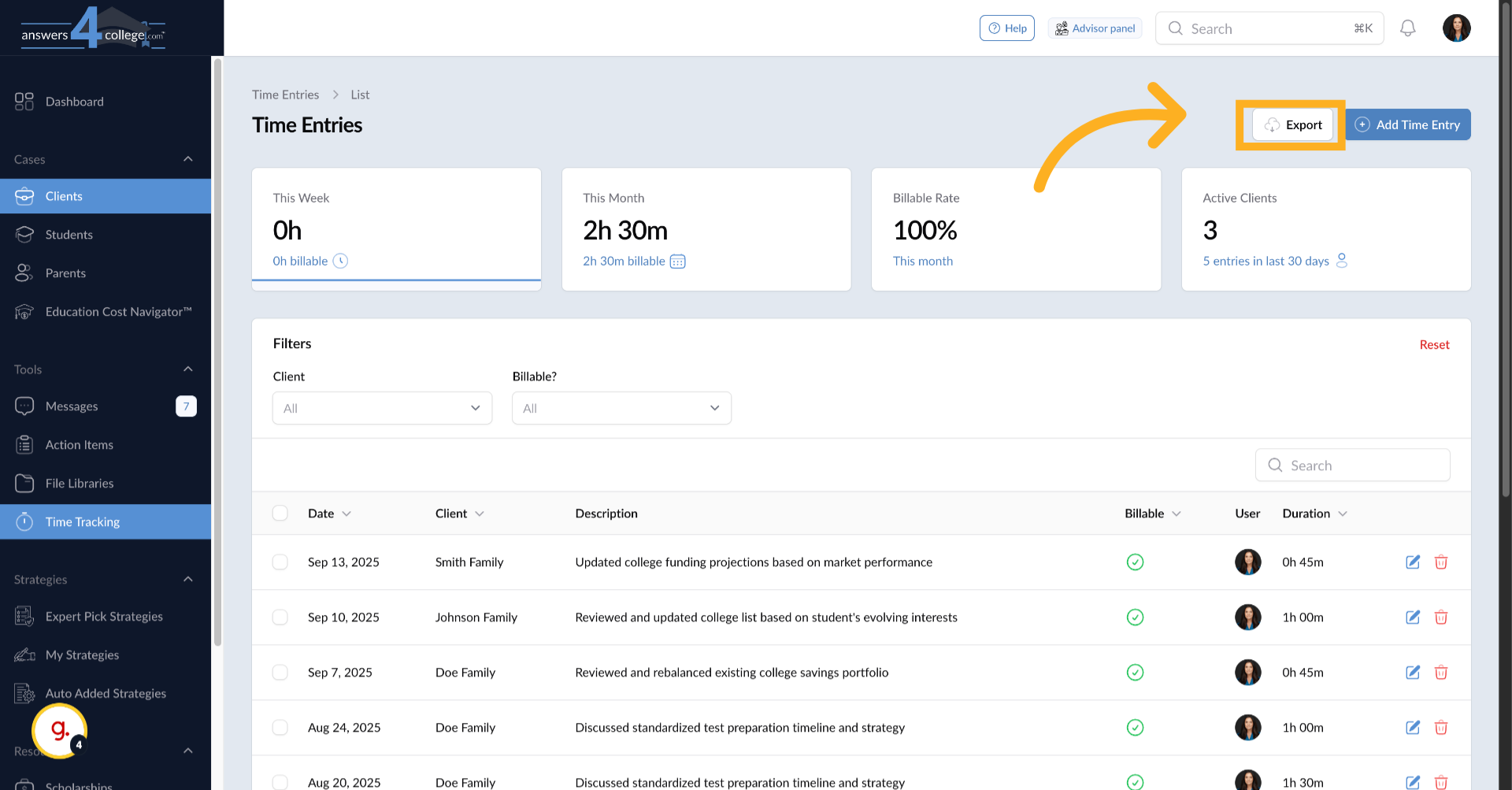
Need to share your time data with accounting software or create reports? Click the "Export" icon at the top of the dashboard. This exports your time entries in a format you can use in spreadsheets or other business tools. The export includes all the details of your time tracking for the selected period and filters.
8. Navigating to a Client
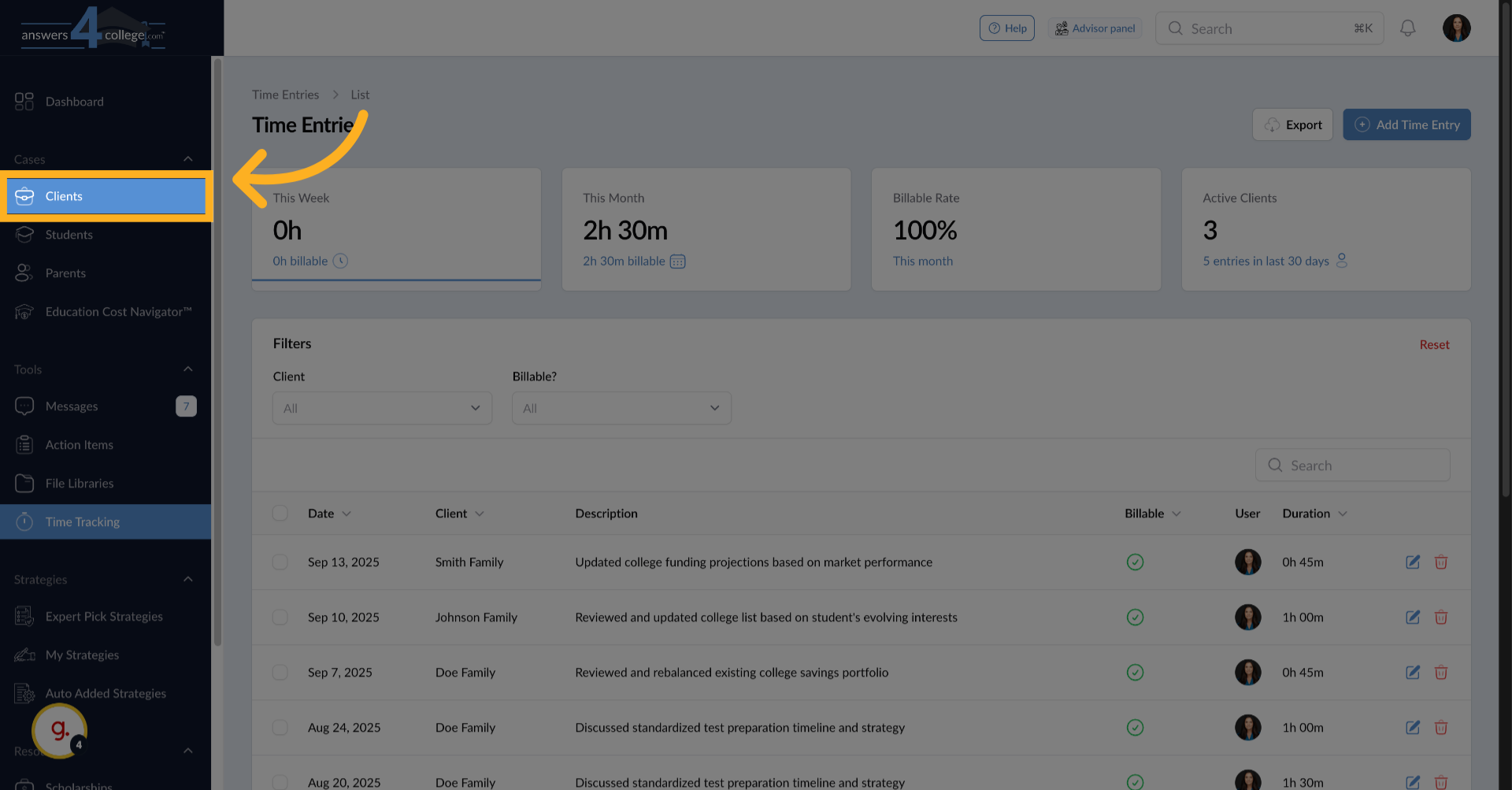
Now let's see how to track time for a specific client. Click "Clients" in the left menu to access your client list.
9. Selecting Your Client
Choose the client you want to work with. For this example, let's select the Johnson family. Click on their name to open their client profile.
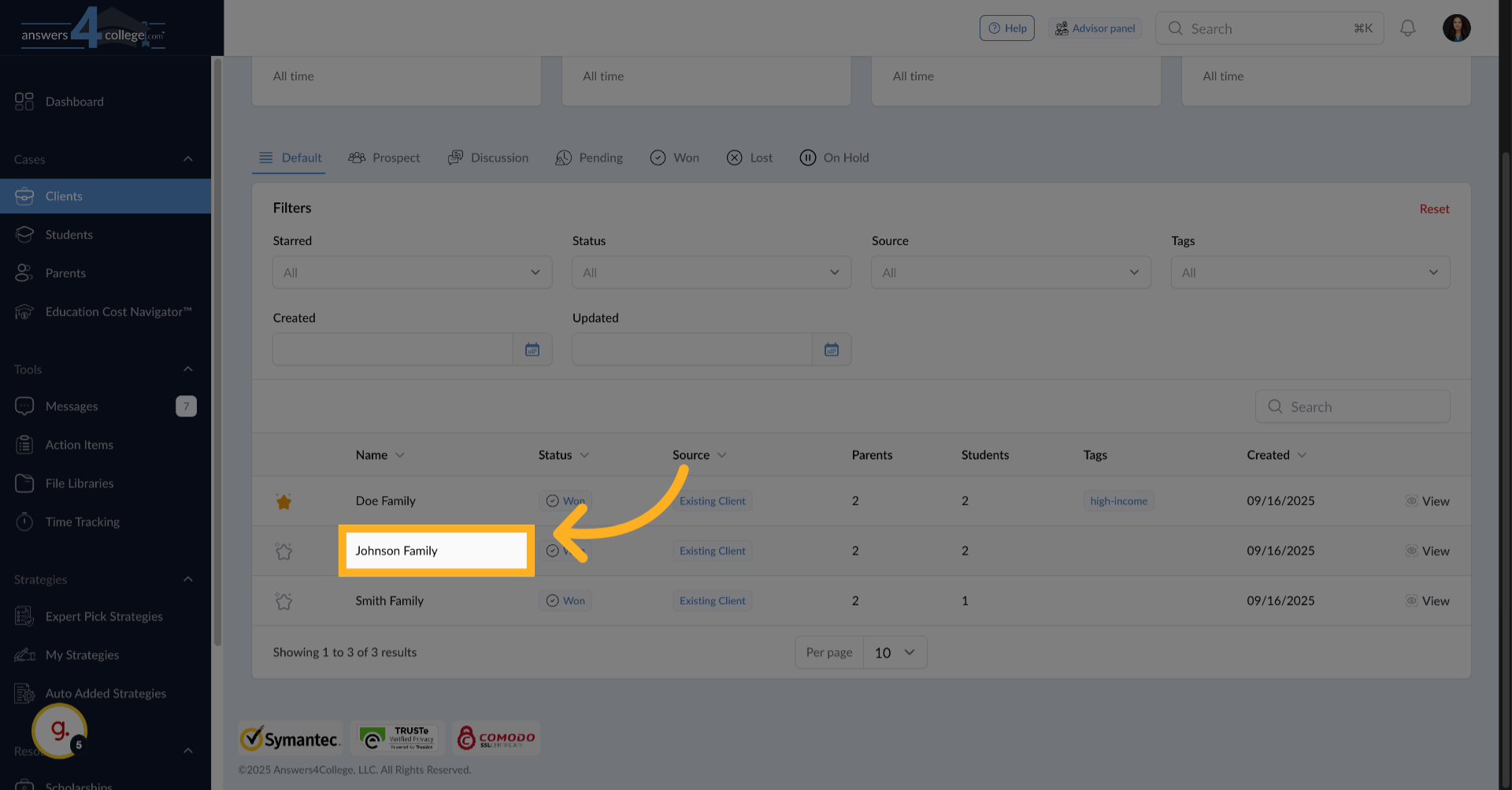
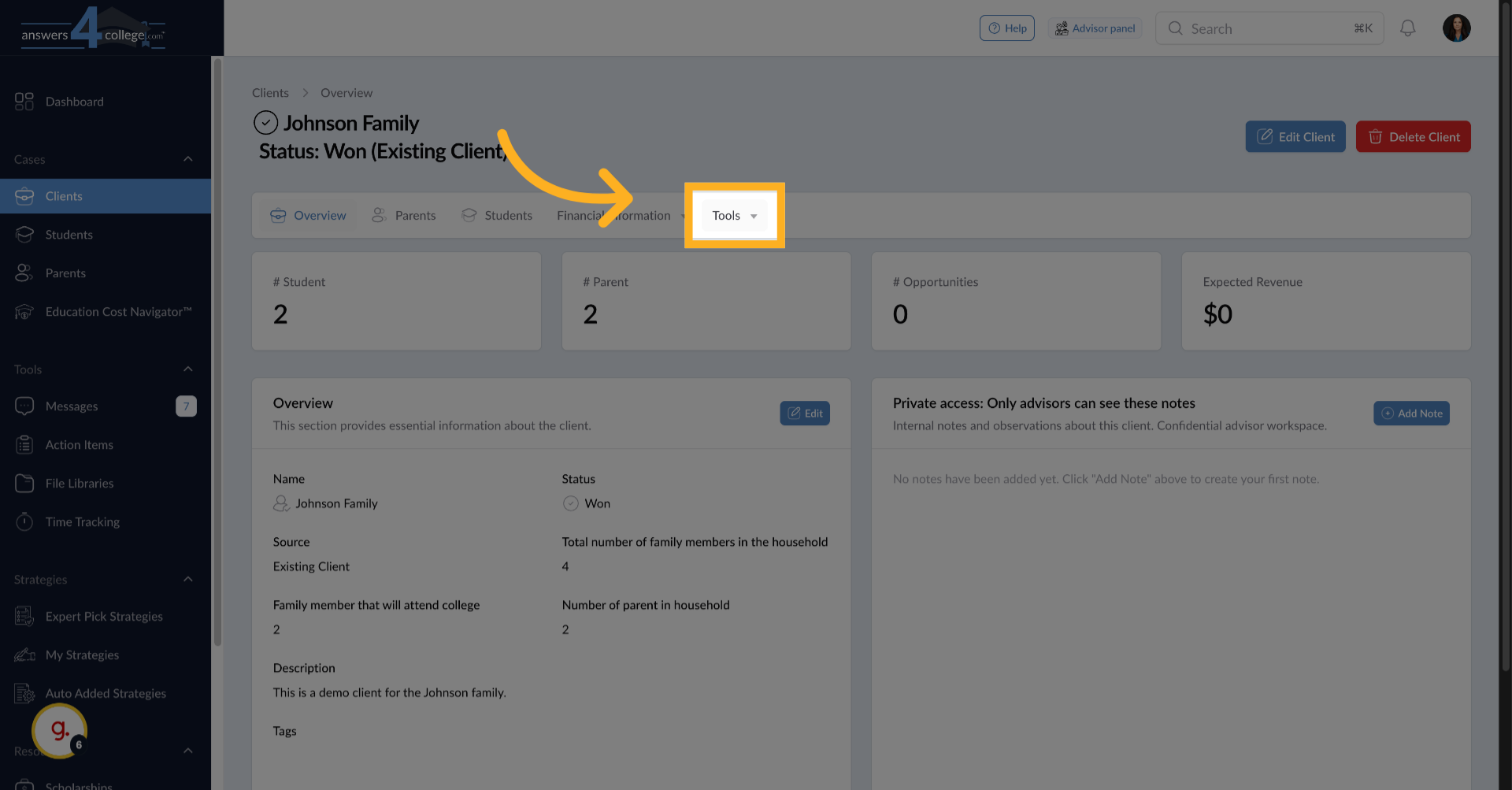
10. Accessing Client-Specific Time Tracking
From the top menu, click "Tools,"
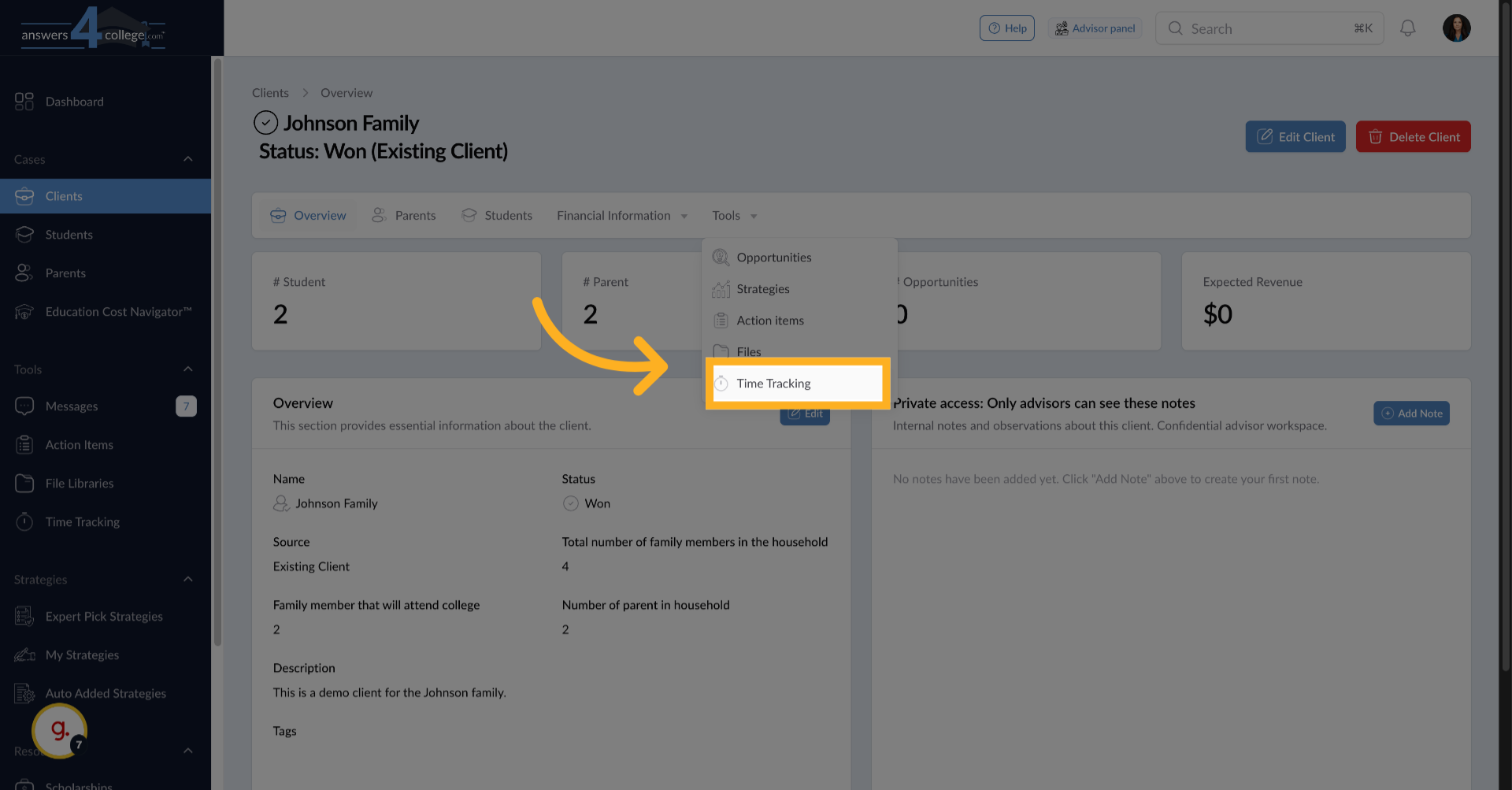
11. Click "Time Tracking"
hen select "Time Tracking" from the dropdown. This takes you to the time tracking view specific to the Johnson family.
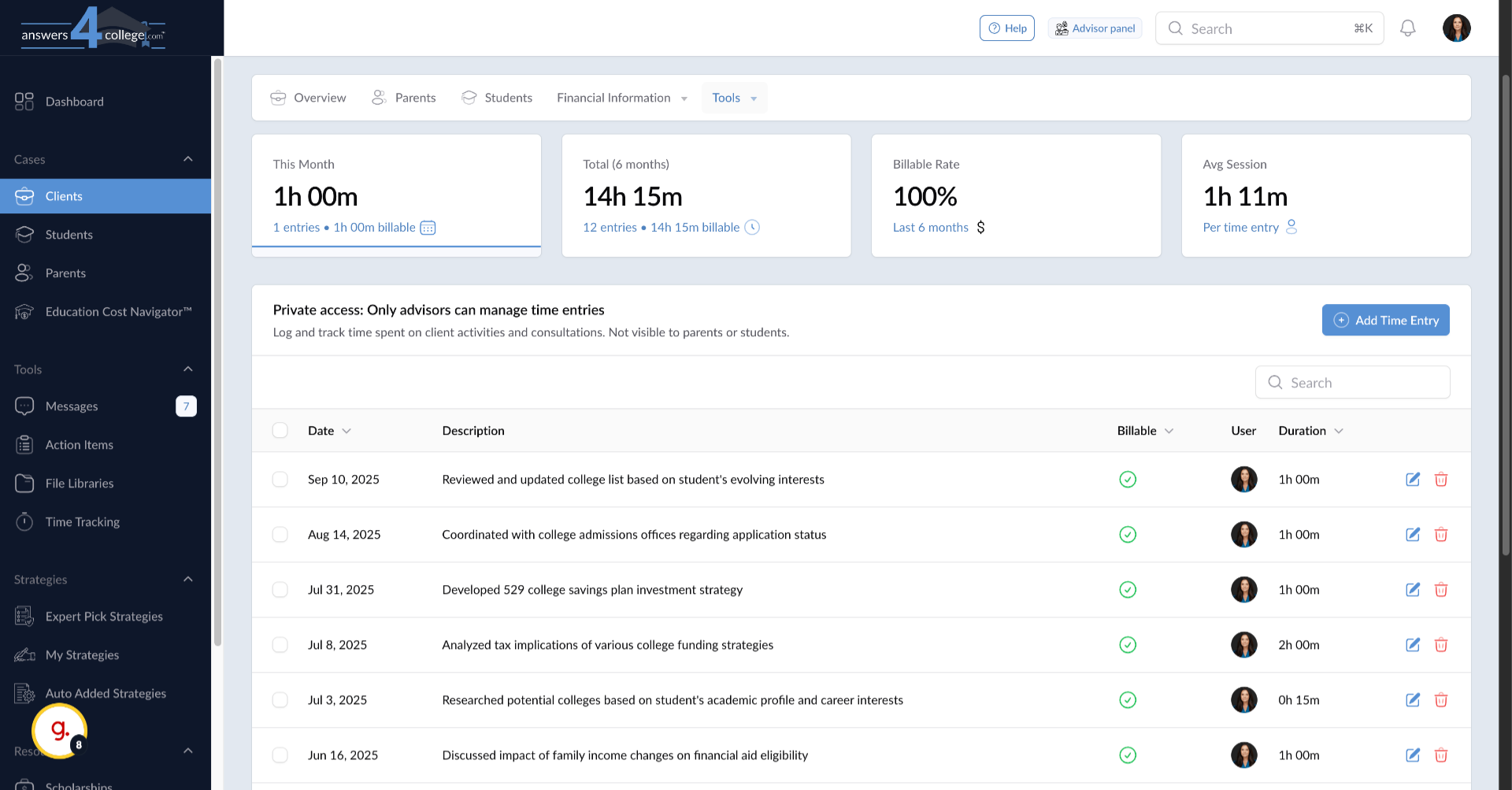
12. Reviewing Client Time Summary
This page shows you exactly how much time you've spent with this client. You'll see summaries for different periods - this month's total, the last six months, and potentially year-to-date. This gives you instant insight into your time investment with this particular family.
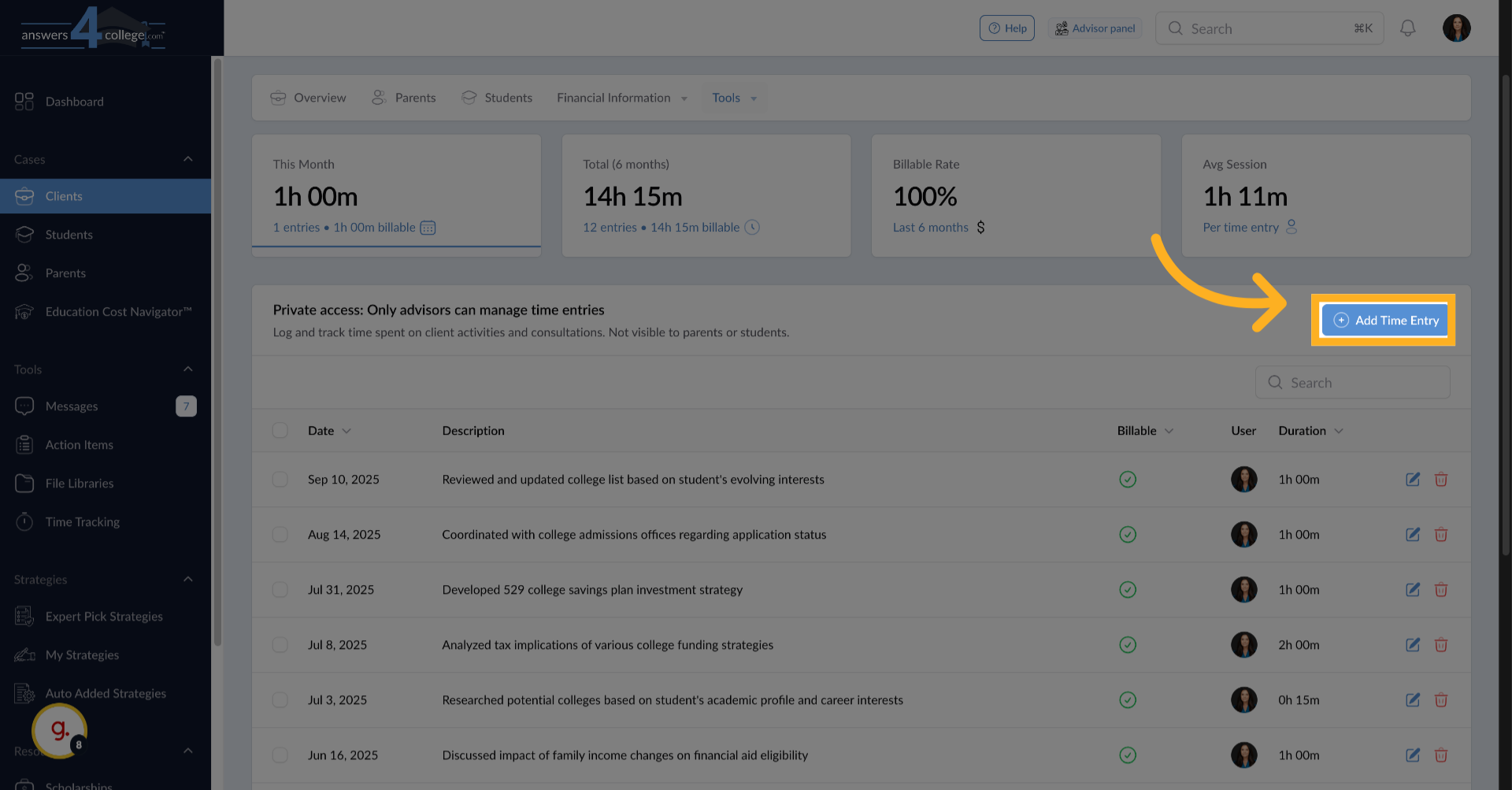
13. Create a New Time Entry
To log new time, click the "New Time Entry" button. This opens a form where you'll record the details of your work session.
14. Configure
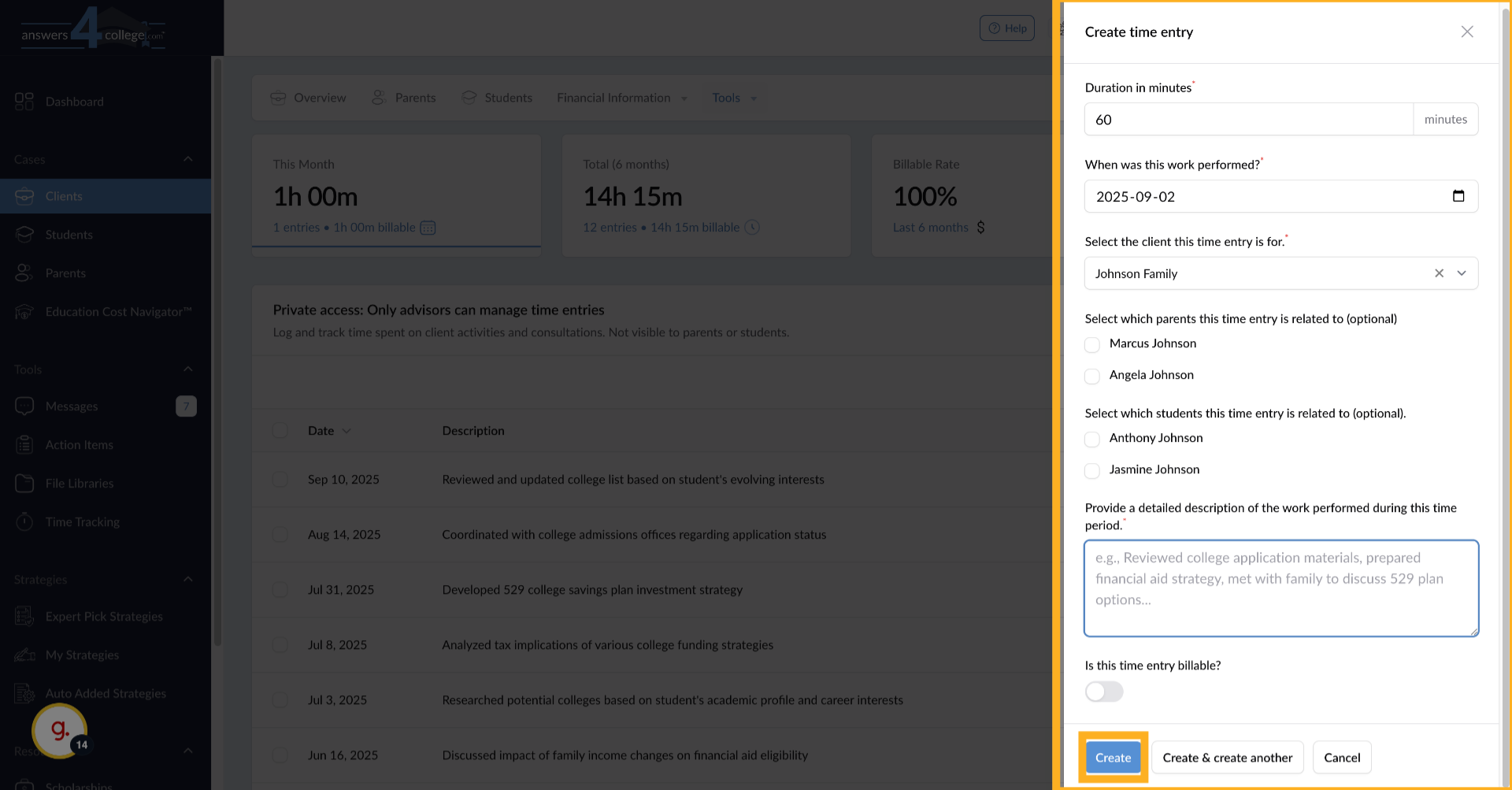
In the minutes field, enter how much time you spent. Be accurate - if you spent an hour and a half, enter 90 minutes. If you worked for 45 minutes, enter 45. This precision helps you understand your true time investment and ensures accurate billing if applicable.
Select when this work was performed using the date picker. You can log time for today or backdate entries if you're catching up on your time tracking. This flexibility means you don't have to log time immediately - you can do it at the end of the day or week.
You'll see an optional field to associate this time with specific parents or students within the family. This is helpful if you want to track time spent on individual family members - perhaps you spent an hour working specifically on Jack's essay review versus general family planning. This level of detail is optional but can provide valuable insights.
In the description field, provide a brief but clear note about what work you performed. For example: "Reviewed Common App essays," "FAFSA completion assistance," or "College list research and discussion." These descriptions help you remember what was accomplished and provide documentation if needed for billing.
Check or uncheck the "Billable" box depending on whether this time should be considered billable. You might mark administrative tasks as non-billable while marking direct client consultation as billable. This distinction helps you track both revenue-generating and overhead time.
Once all information is entered, click "Create" to save your time entry. It immediately appears in your time log for this client.
15. Editing Time Entries
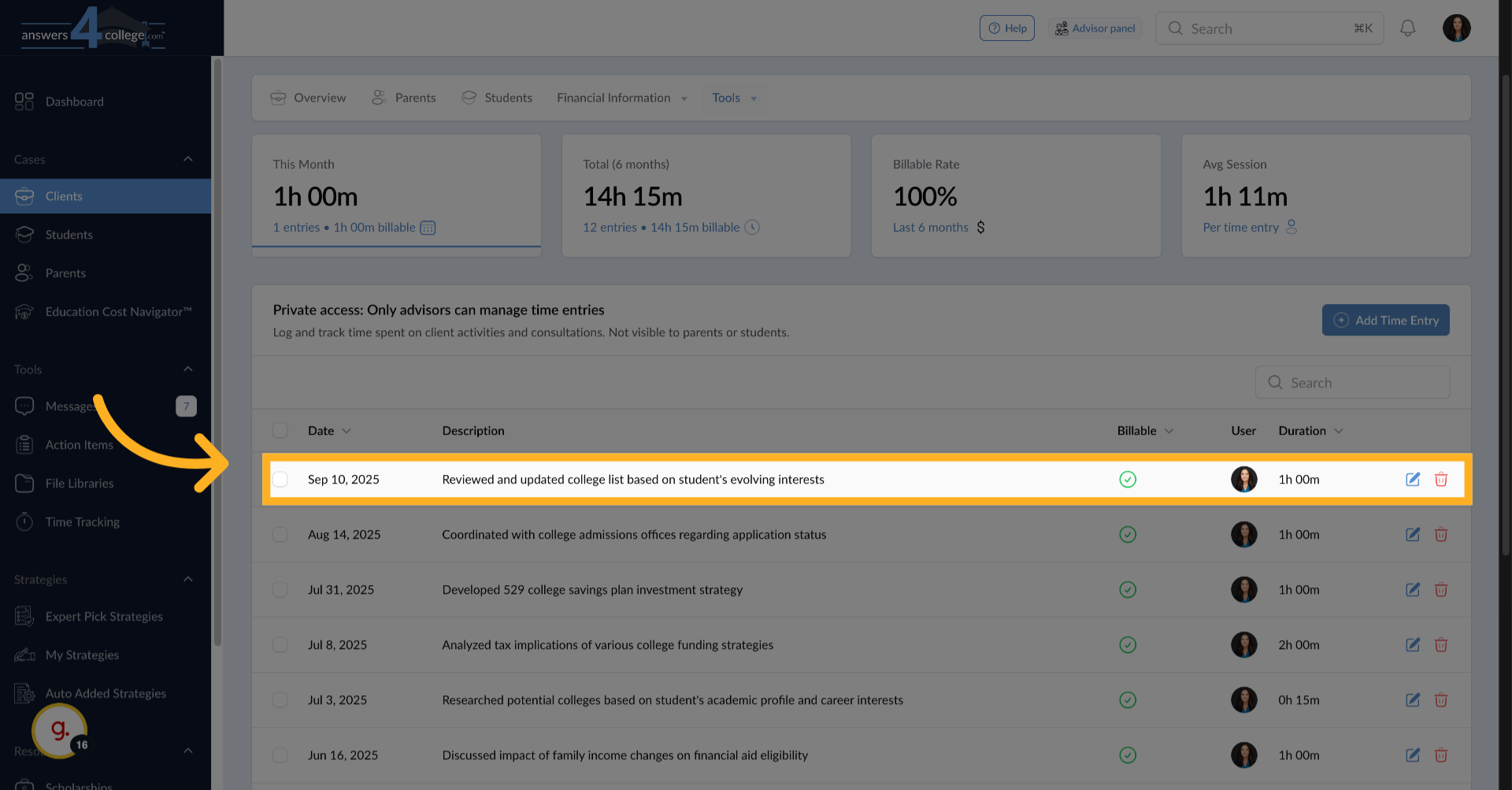
Made a mistake or need to update an entry? Find the time entry you want to modify and click the "Edit" button. The form reopens with all the current information.
16. Making Corrections
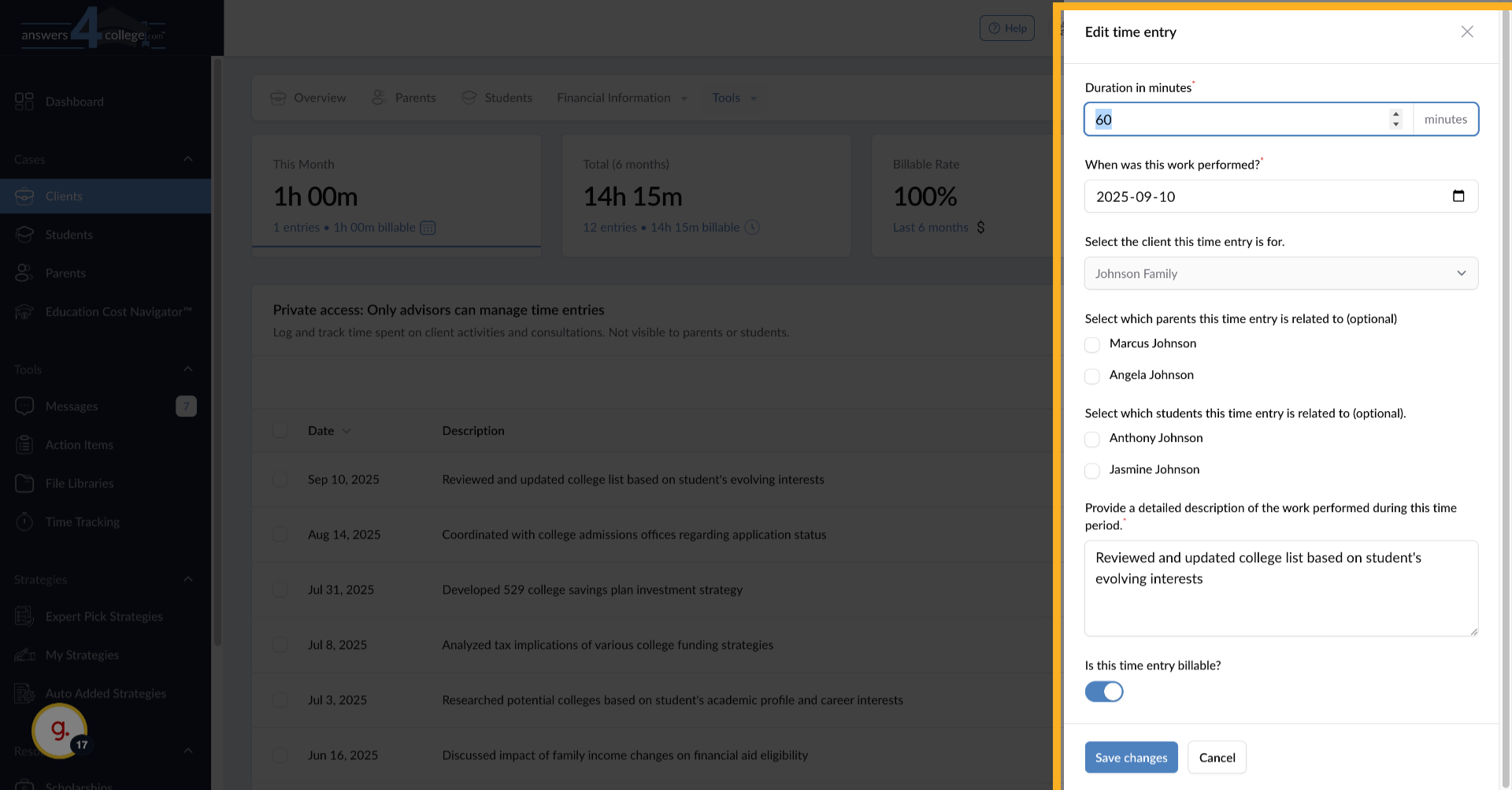
Update any field that needs correction - maybe you realized it was 90 minutes, not 60, or you want to add more detail to the description. Make your changes and click "Save Changes" to update the entry.
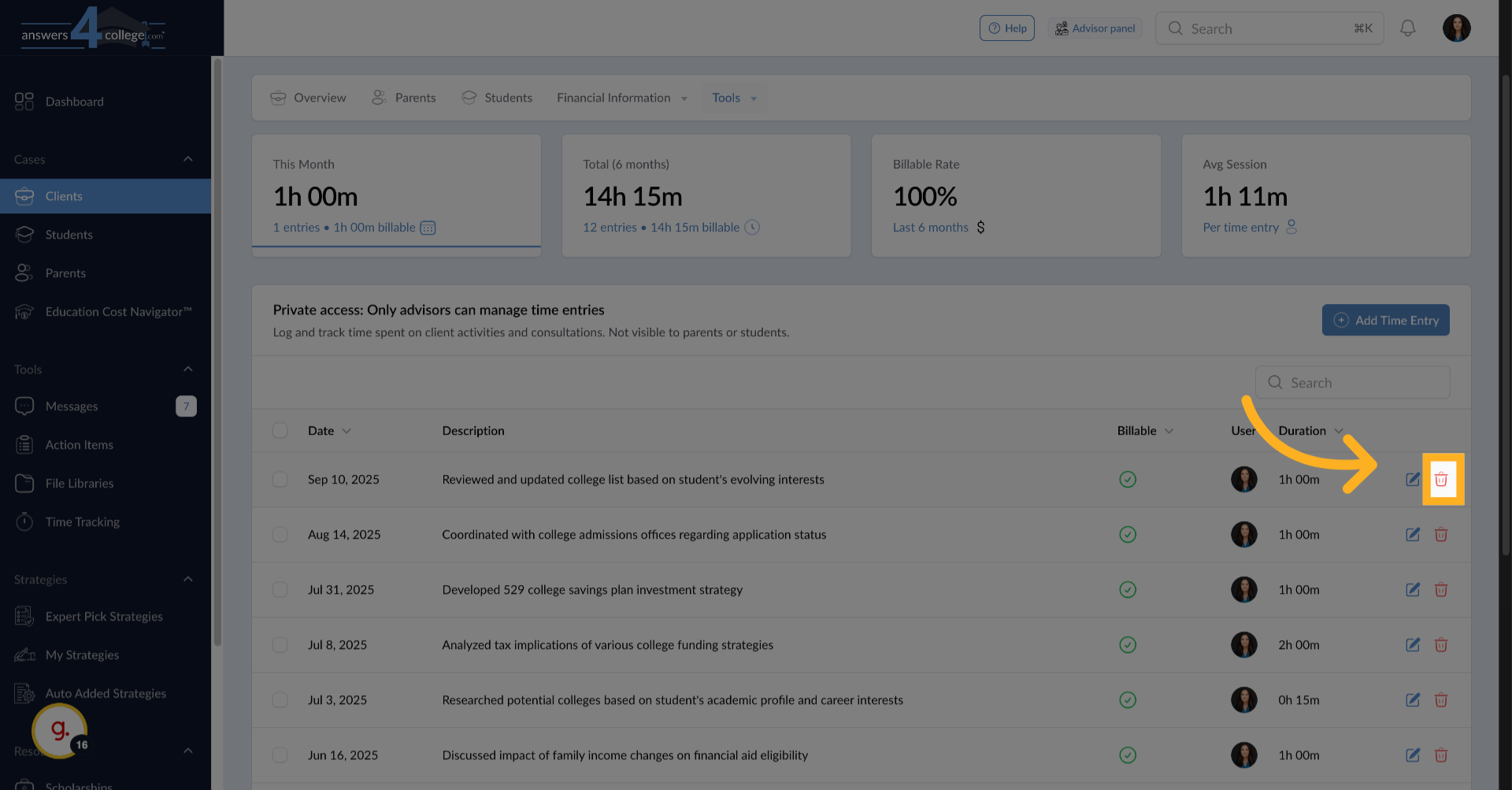
17. Deleting Time Entries
If you need to remove an entry entirely, click the "Delete" button next to the entry. Use this carefully as deletion is permanent, but it's there if you accidentally create duplicate entries or need to remove incorrect logs.
You've now mastered the Time Tracking feature in the Answers for College Advisor Portal. This powerful tool transforms how you understand and manage your advisory practice. No more spreadsheets, no more guessing where your time goes - everything is tracked professionally in one secure, private system.
Remember, time is your most valuable resource as an advisor. By tracking it accurately, you gain insights into your efficiency, ensure fair billing when applicable, and can make informed decisions about your practice. Whether you're managing a few families or dozens, this system scales with your needs.
Thank you for following along with this tutorial. Start tracking your time today and discover the valuable insights it provides about your advisory practice.
Comments
0 comments
Please sign in to leave a comment.