In this guide, we’ll walk you through the steps on how to use the Answers4College
Planning Software as an advisor. This tutorial focuses on the dashboard overview
to help you get familiar with the main interface.
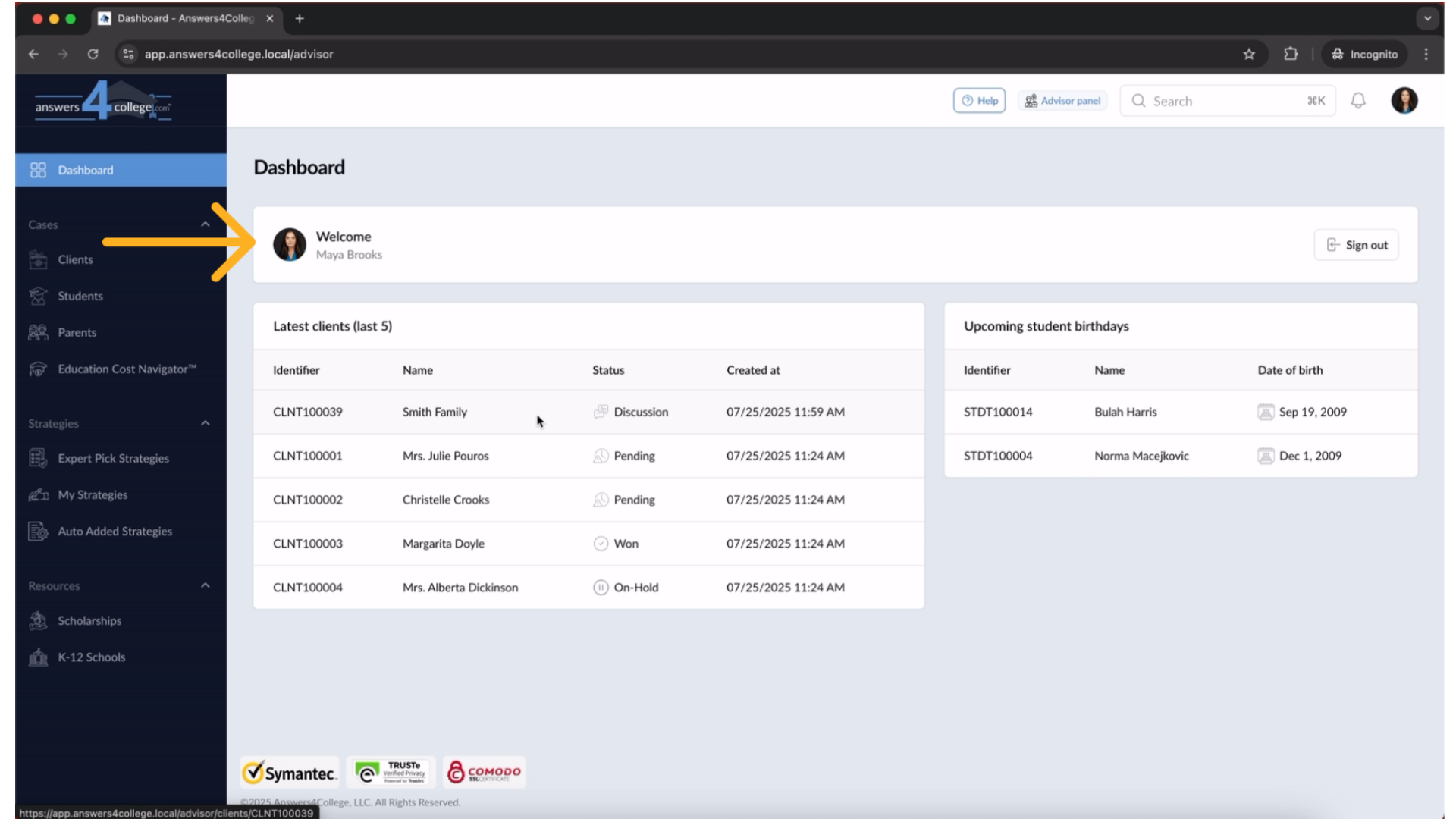
1. Welcome & Sign Out
At the top of the screen, you’ll notice a personalized welcome message along
with a convenient sign-out button for quick access when you’re done using
the platform.
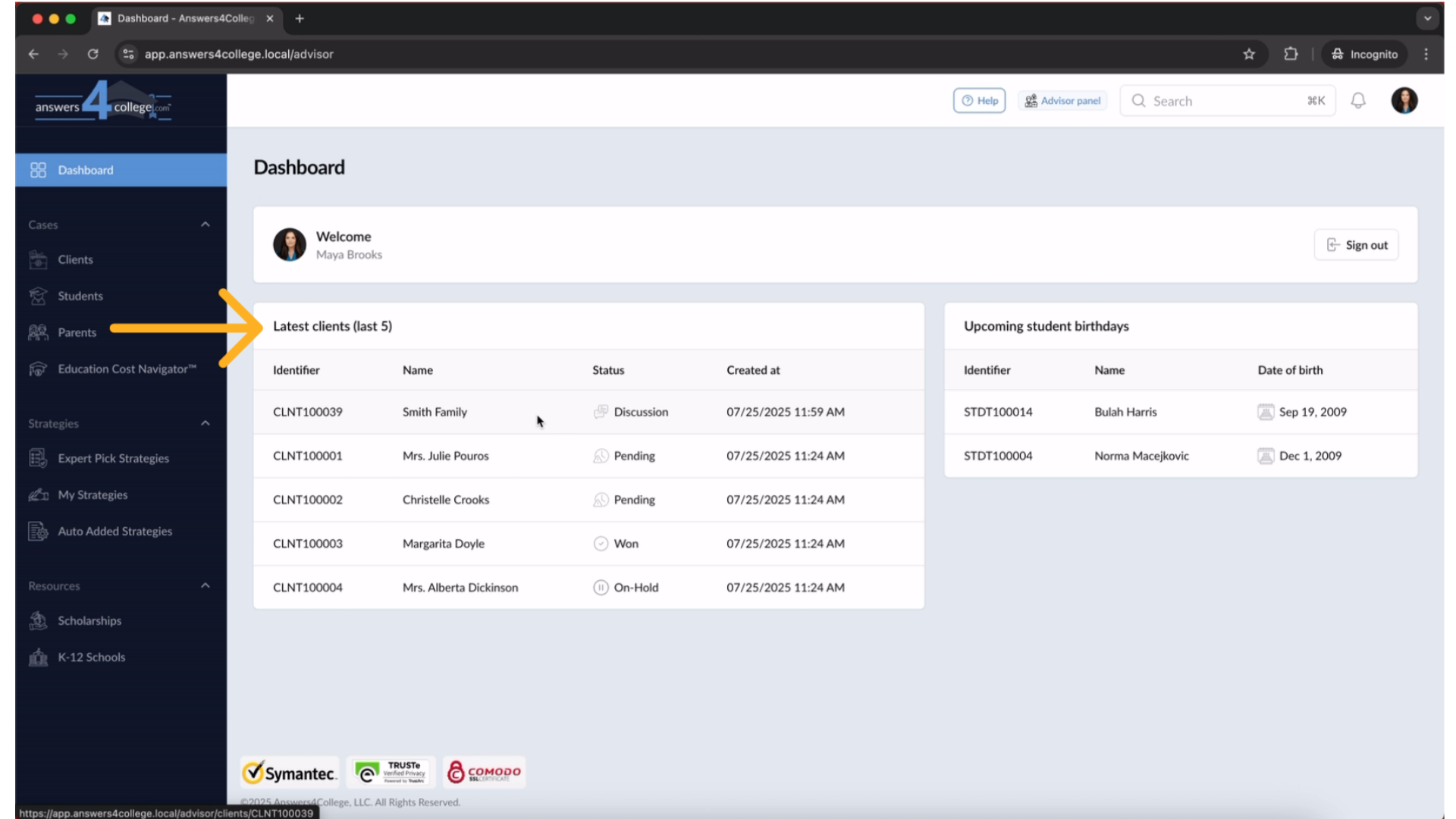
2. Latest Clients Panel
On the left-hand side, the first tab is labeled "Latest Clients".This section
shows your five most recently added clients—giving you fast access to your
newest records.
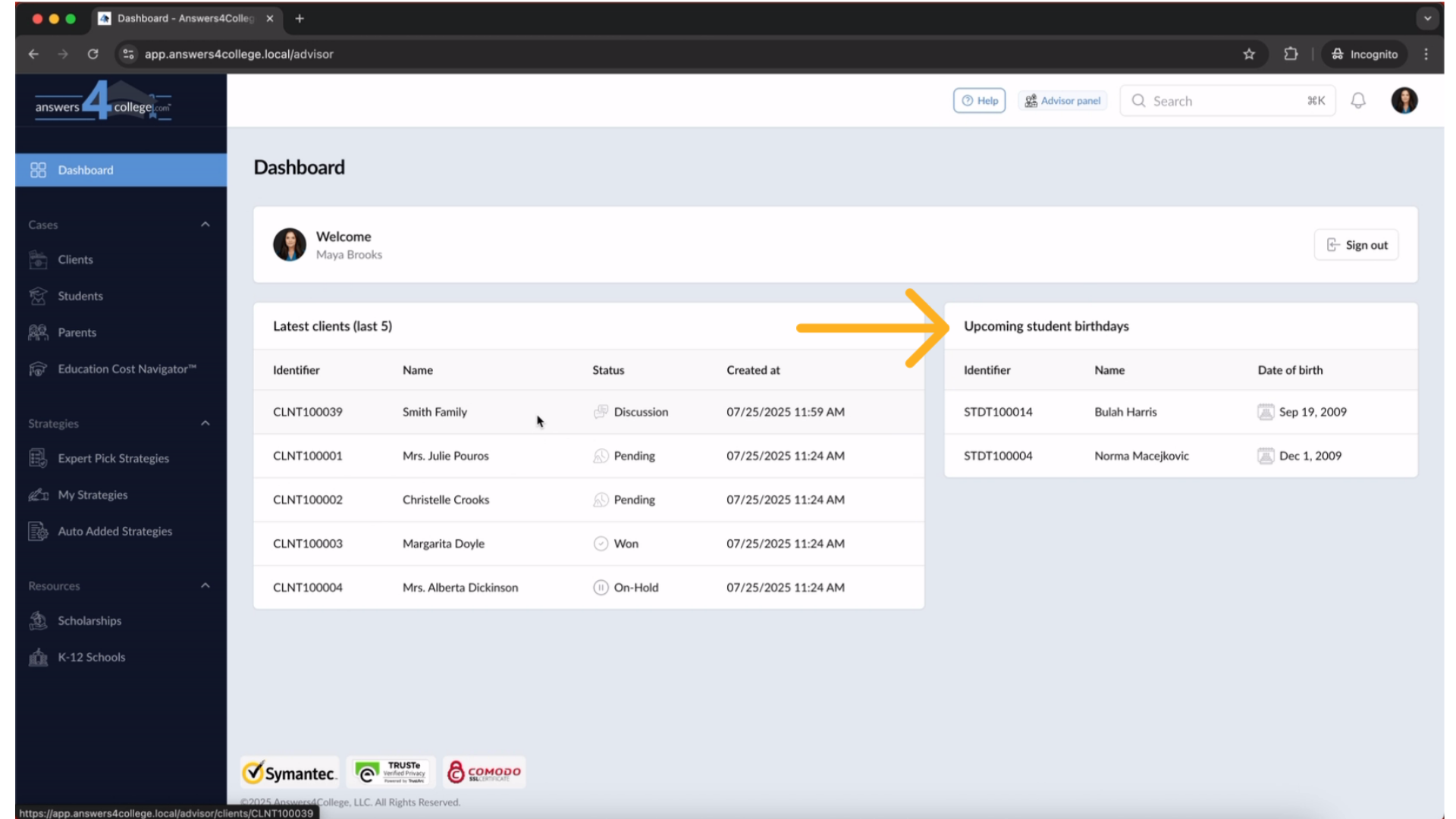
3. Upcoming Student Birthdays
On the right side of the dashboard, you’ll see a list of upcoming student
birthdays.This is a great way to stay engaged and send timely greetings to
your students.
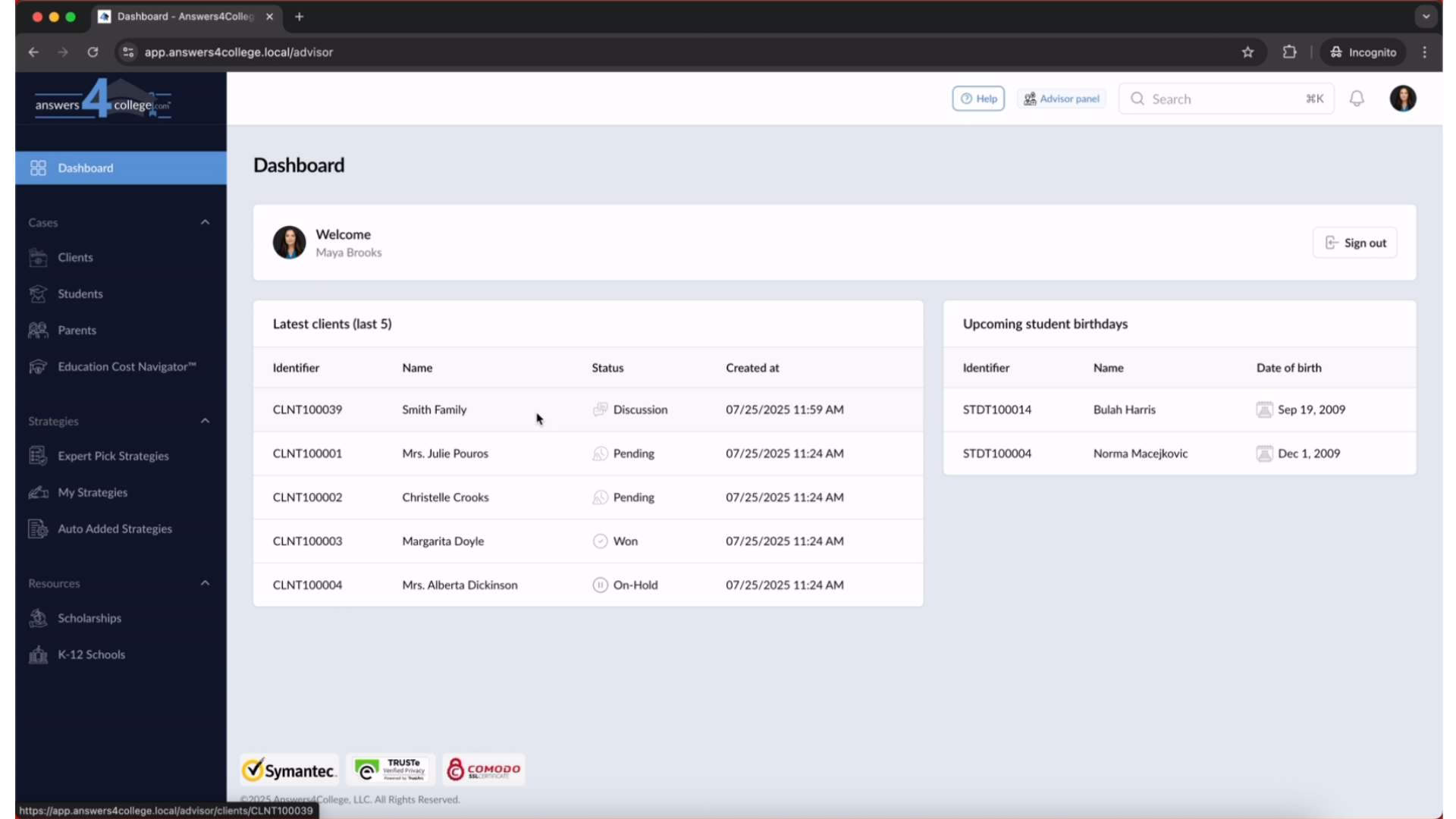
4. Quick Navigation
You can click on any client’s name to go directly to their profile, or select
a student’s name to open their detailed page.
This guide gave you a quick overview of the Answers4College advisor dashboard,
highlighting key sections and navigation tips to help you get started with
confidence.
Comments
0 comments
Please sign in to leave a comment.